
images.Padding
- Syntax
- images.Padding V1 [V2] [V3] [V4] [COLOR]
- Returns
- images.filter
Usage
The images.Padding function returns an image filter that resizes the image canvas without resizing the image. Use positive padding values to add space around the image, and negative values to crop it.
Specify one to four padding values using the CSS shorthand property syntax. Each value is in pixels and must not exceed 5000. The number of values determines the edges to which each value applies:
| Values | Applies to |
|---|---|
V1 | All four edges |
V1 V2 | Top and bottom, then left and right |
V1 V2 V3 | Top, then left and right, then bottom |
V1 V2 V3 V4 | Top, right, bottom, then left |
To use a transparent or semi-transparent canvas color, convert the image to a format that supports transparency, such as AVIF, PNG, or WebP.
Arguments
The number of padding values determines the edges to which each value applies, as described in usage.
V1- (
int) The first padding value, in pixels. V2- (
int) The second padding value, in pixels. V3- (
int) The third padding value, in pixels. V4- (
int) The fourth padding value, in pixels. COLOR- (
string) The canvas color, expressed as an RGB or RGBA hexadecimal color, with or without a leading hash mark. Default isffffffff(opaque white).
Examples
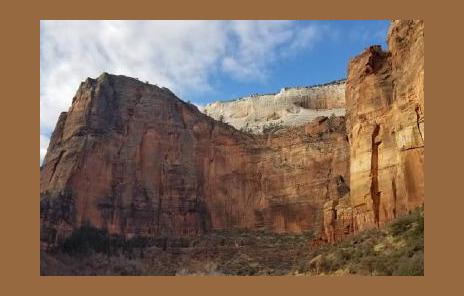
{{ $filter := images.Padding 20 40 "#976941" }}Applying the filter with the images.Filter function:
{{ with resources.Get "images/original.jpg" }}
  {{ with . | images.Filter $filter }}
    <img src="{{ .RelPermalink }}" width="{{ .Width }}" height="{{ .Height }}" alt="">
  {{ end }}
{{ end }}
Applying the filter with the Filter method on a Resource object:
{{ with resources.Get "images/original.jpg" }}
  {{ with .Filter $filter }}
    <img src="{{ .RelPermalink }}" width="{{ .Width }}" height="{{ .Height }}" alt="">
  {{ end }}
{{ end }}
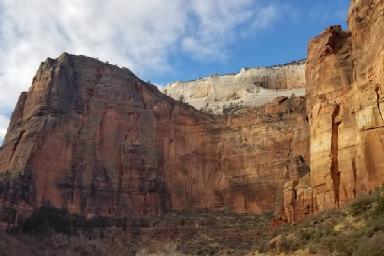
This is the original image:
This is the processed image:
Using one of the image’s most dominant colors, returned by the Colors method, as the canvas color:
{{ with resources.Get "images/original.jpg" }}
  {{ $filter := images.Padding 20 40 (index .Colors 2) }}
  {{ with . | images.Filter $filter }}
    <img src="{{ .RelPermalink }}" width="{{ .Width }}" height="{{ .Height }}" alt="">
  {{ end }}
{{ end }}
Resizing the image to 300 pixels wide, converting it to WebP to support transparency, and adding 20 pixels of vertical padding and 50 pixels of horizontal padding with a dark green canvas color at 33% opacity:
{{ $img := resources.Get "images/a.jpg" }}
{{ $filters := slice
  (images.Process "resize 300x webp")
  (images.Padding 20 50 "#0705")
}}
{{ $img = $img.Filter $filters }}
Adding a 2-pixel gray border:
{{ $img = $img.Filter (images.Padding 2 "#777") }}Cropping 50 pixels from the top, 100 pixels from the right, 150 pixels from the bottom, and 200 pixels from the left. Given a 600x400 image, the result is a 300x200 image:
{{ $img = $img.Filter (images.Padding -50 -100 -150 -200) }}Cropping 200 pixels from the left edge only:
{{ $img = $img.Filter (images.Padding 0 0 0 -200) }}